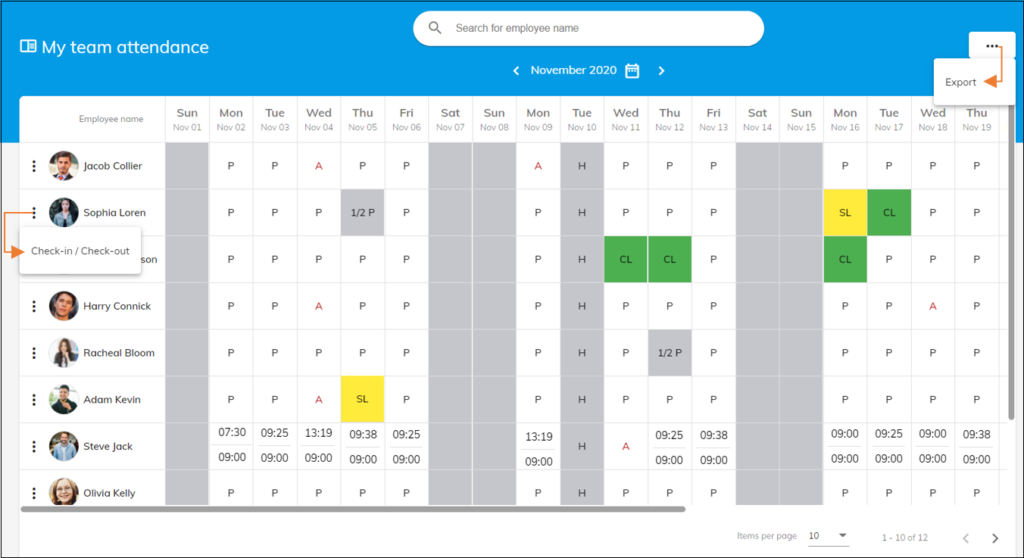
Navigate to Attendance tracker > My team attendance to view your employee’s attendance details. My team attendance tracks each employee’s attendance for a month.
- If an organisation works on a day shift, you can view the present (P) and absent (A) status of all employees for an entire month.
- If an organisation uses an hourly shift system, you can view all the employee’s working hours for an entire month.
- If an employee takes a leave through the OfficePortal, that day will be indicated by the leave type’s code and colour.
- The columns highlighted in grey are “Weekends.”
- ‘H’ indicates holiday.
Note:
- You can go back and forth between months using the previous and next month’s icons.
- If you would like to Export or Download this report, click on the options icon (3 dots) and select the export option.
How can you view any employee’s entry/exit details on my team attendance?
Just tap on a specific day to get the employee’s entire entry/exit details.

How can you manually mark an employee as absent?
- Just tap on a specific day
- The employee’s entry/exit details dialog box appears
- Click on the “Mark as absent” button
- Once you click on the “Mark as absent” button, we will remove all the added entries and mark the employee as absent.
When & how can you recalculate attendance for an employee on my team attendance?
If you see the total in and/or out time are incorrect based on your entry/exit details, then you can “Recalculate” to make it right.
- Just tap on a specific day
- The employee’s entry/exit details dialog box appears
- Click on the “Recalculate” button
How can you manually mark attendance for an employee on my team attendance?
- Just tap on a specific day
- The employee’s entry/exit details dialog box appears
- Click on the “Add entry” button
- Click on “Check-in” & select the check-in time
- Click on “Check-out” & select the check-out time
- You can enter the remarks, if any.
- Just scroll down and click on the “Save” to add the entry.
- If you want to add multiple entries, keep repeating steps 3-7.
