OfficePortalOfficePortal
HR Management
Employee DatabaseCentralized employee records & documentsLeave TrackerPTO policies, accruals & absence trackingAttendance TrackerWeb check-in, biometric & automated capturePerformance ManagementGoals, reviews & assessment cycles
Workforce
Employee MonitoringActivity tracking & productivity insightsShift ManagementShift scheduling, reminders & penaltiesLocation TrackerReal-time employee location visibilityCall TrackerCall insights, tracking & reporting
Operations
PayrollAutomated payroll, expenses & payslipsTime TrackingTimesheets, project hours & approvalsTask ManagementProjects, task boards & workflowsCollaborationInternal social feed, announcements & albums
All-in-one HRMS for modern teams
View all features →
BlogHR tips, guides & industry insightsWhat's NewLatest product updates & featuresReviewsWhat our customers say about usCareersJoin the OfficePortal team
PricingContactHelp
Book a DemoStart Free
Help Center›Employees›How to Add Emergency Contacts in OfficePortal

Employees

How to add a profile picture for an employee in the OfficePortalEasy steps Import Employees to OfficePortalEmployee role based authenticationAdd employees manually to the OfficePortalEmployees directory in OfficePortal HRMSHow to Easily Invite Employees to Access OfficePortal and Update Work InformationHow to Update Employee Education and Experience Details in OfficePortalHow to Add Emergency Contacts in OfficePortalHow to Upload and Save Essential Documents in OfficePortal s Cloud SystemHow to Add Bank and Compensation Details in OfficePortalStatutory optionsLoans and salary advancesExpenses and reimbursementsIncome taxVehicle detailsSalary detailsPayslips and formsExit DetailsSalary Revision

How to Add Emergency Contacts in OfficePortal

Even though the employee can enter their emergency contacts, you can also enter the emergency contact person’s name, relationship, phone number, and other details on behalf of your employees.

You can update several emergency contacts, but ensure that at least one contact must be chosen as the primary contact by selecting the check box for that contact which will be displayed at the end of the dialogue box (refer to the image for accurate info)
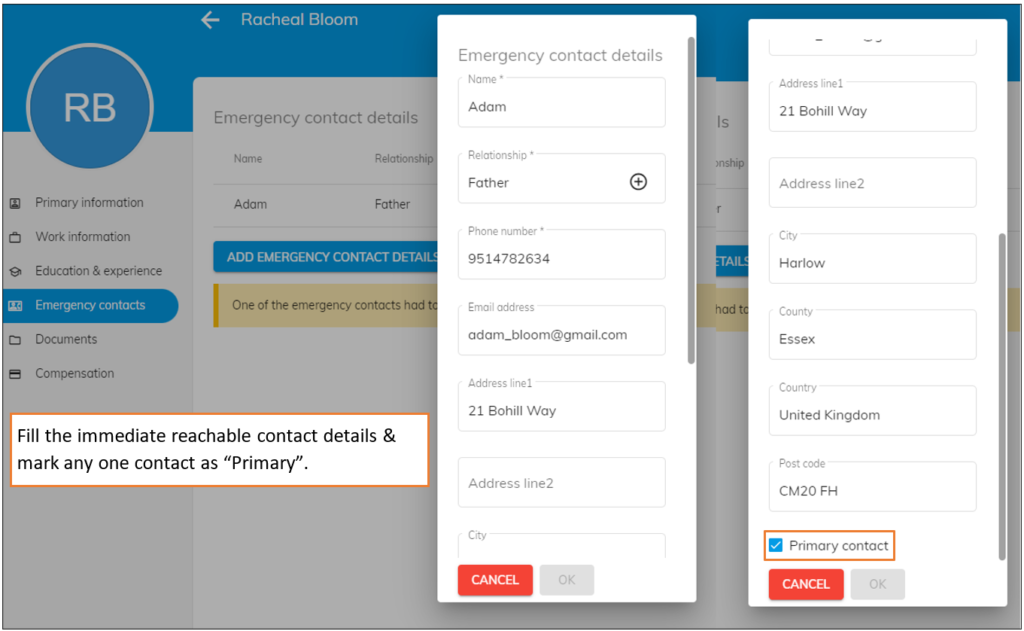
Emergency Contacts

← PreviousHow to Update Employee Education and Experience Details in OfficePortalNext →How to Upload and Save Essential Documents in OfficePortal s Cloud System
Back to Employees
OfficePortal

All-in-one HRMS software to manage attendance, payroll, leave, performance and more.

F3, Plot 218, Atrium Spring Meadows,
Chennai, India

+91 89257 85888 · +91 84548 69085

sales@officeportal.io

Google PlayApp Store

Product

  • Attendance Tracking
  • Leave Management
  • Payroll
  • Shift & Rota
  • Performance
  • Employee Monitoring
  • Location Tracker
  • Call Tracker
  • Time Tracking
  • Collaboration

Support

  • Help Center
  • What's New
  • Blog
  • Reviews
  • Careers

Get Started

  • Setup Free Account
  • Schedule a Demo
  • Pricing

Legal

  • GDPR
  • Privacy Policy
  • Cookie Policy

© 2026 OfficePortal. All rights reserved.