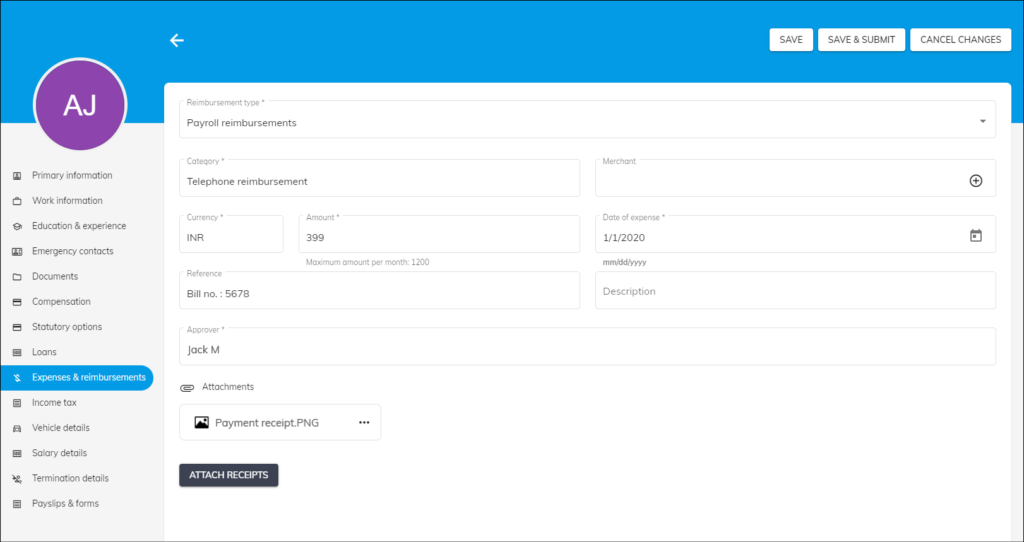
The expense & reimbursement section allows you to keep track of all the official expenditures incurred by your employees. Maintaining a record of reimbursements also aids in budgeting. The list view gives you a quick summary of all the expense & reimbursement details, including reimbursement type, approver information, status, claimed amount, and approved reimbursement amount.
You may file a reimbursement claim if your employer has assigned a reimbursement category in your salary details.
To claim reimbursement, you are required to add expenses and submit them for approval.
Add a new expense
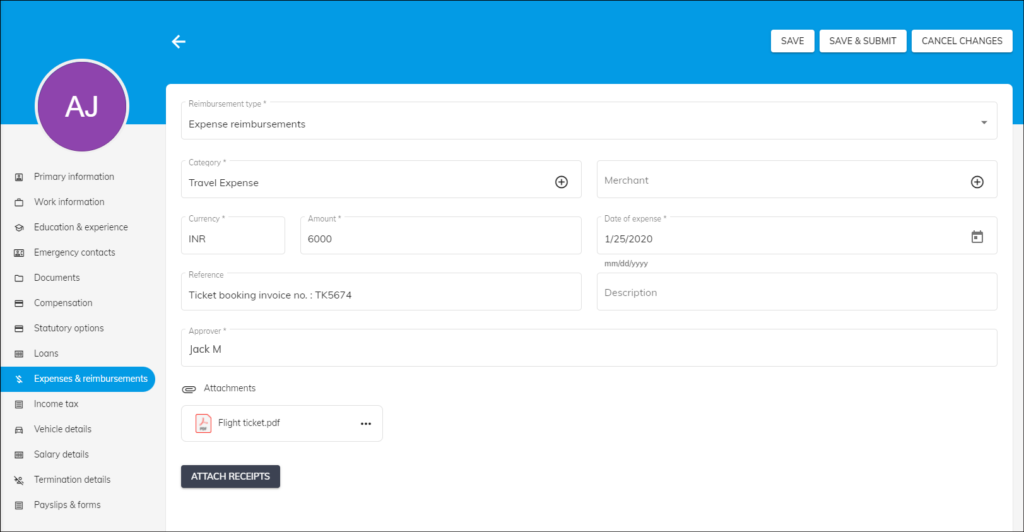
- Choose the reimbursement type as “Expense reimbursements”.
- Select the expense category under the category drop-down or create a new category by tapping the “+” button provided on the field.
- You can either select a merchant from the list or create a new merchant by tapping the “+” button provided on the field.
- Choose the currency code and enter the amount that has been spent from your pocket.
- Then, enter the date on which you made the advance payment.
- Mention any reference for the expense if any.
- If necessary, add extra information to the description box.
- Choose the name of the Approver to whom you’d like to send the expense report for the approval process.
- If necessary, you can upload the receipts associated with the expenses for the accounting records.
Add a new reimbursement
- Choose the reimbursement type as “Payroll reimbursements”.
- As soon as you select payroll reimbursements, you can select a reimbursement category under the category drop-down.
- After that, you can follow steps 3 to 9 mentioned in “Add a new expense”.