For a visual walkthrough, watch our tutorial video below.
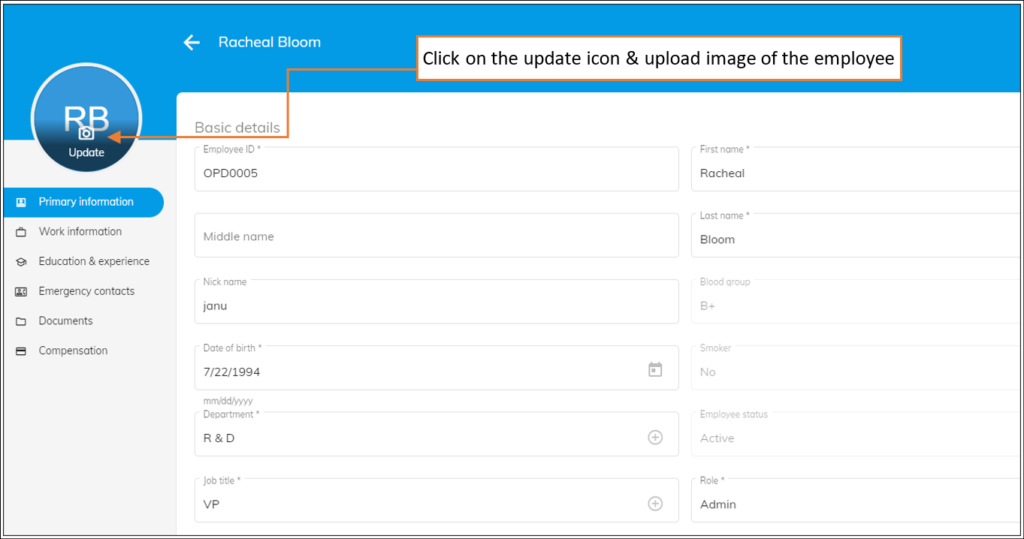
To upload an employee’s profile picture or avatar, follow these simple steps:
How to add a picture/avatar of the employee in the OfficePortal?
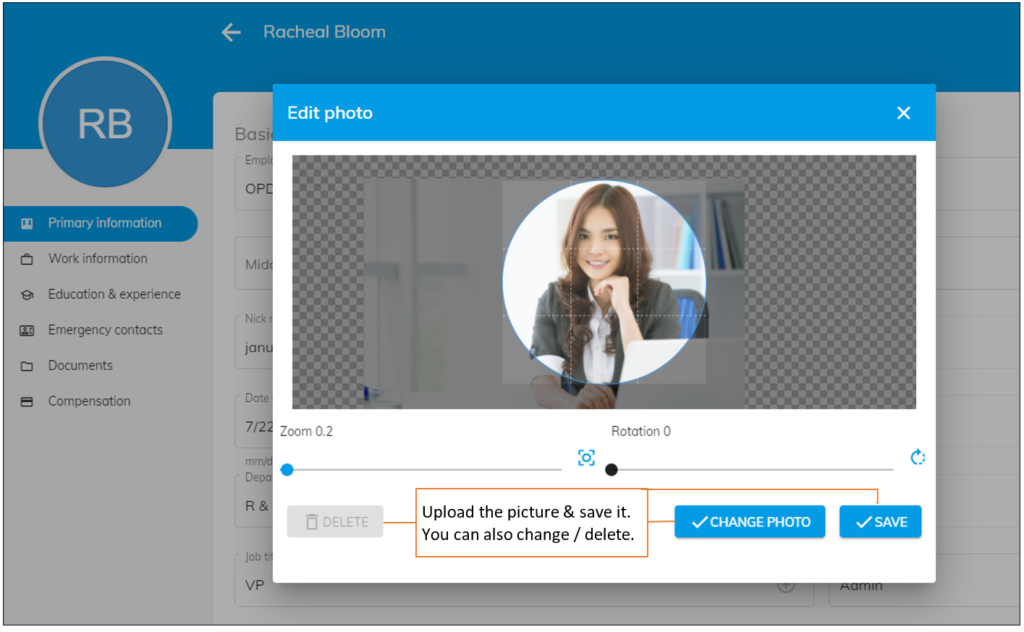
- Click on the image icon in the employee’s profile to open the “Edit Photo” dialog box.
- Click on the “Add Photo” button and select a picture from your computer.
- Once you’ve chosen the picture, click the “Save” button to upload it.
Note:
You can also easily modify or remove the employee’s picture at any time by clicking the “Change Photo” or “Delete” button in the “Edit Photo” dialog box.”